Reporting and Tracking Bugs with MantisBT
Managing your software project with MantisBT

Introduction
Mantis Bug Tracker is a web-based bug tracking system used to track software defects. Key features that make MantisBT such a powerful bug tracking system are its e-mail notification system, RSS feeds to keep track of issues, rich plugin library to extend its functionality, audit trail of reported issues, revision control of text fields and notes and so much more.
Herein we provide a basic step-by-step guide on how you can use MantisBT for reporting bugs to your developer and tracking the development progress of your software projects. Inside this article, we will cover the usage of MantisBT on the basis of how it will function right out of the box.
Overview
Issue Lifecycle
The diagram below shows the standard lifecycle that is shipped with MantisBT.
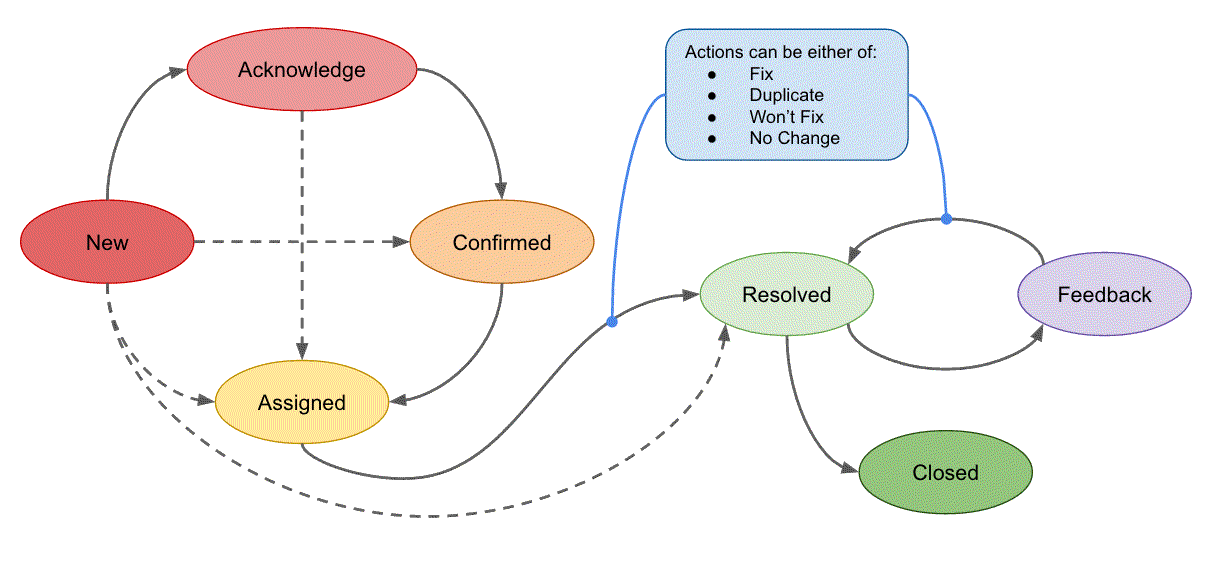
New | This is the landing status for new issues. Issues stay in this status until they are assigned, acknowledged, confirmed or resolved. The next status can be "acknowledged", "confirmed", "assigned" or "resolved". | ||
Acknowledged | This status is used by the development team to reflect their agreement to the suggested feature request. Or to agree with what the reporter is suggesting in an issue report, although they didn't yet attempt to reproduce what the reporter is referring to. The next status is typically "assigned" or "confirmed". | ||
Confirmed | This status is typically used by the development team to mention that they agree with what the reporter is suggesting in the issue and that they have confirmed and reproduced the issue. The next status is typically "assigned". | ||
Assigned | This status is used to reflect that the issue has been assigned to one of the team members and that such team member is actively working on the issue. The next status is typically "resolved". | ||
Resolved | This status is used to reflect that the issue has been resolved. An issue can be resolved with one of many resolutions (customizable). For example, an issue can be resolved as "fixed", "duplicate", "won't fix", "no change required", etc. The next statuses are typically "closed" or if the issue being re-opened, then it would be "feedback". | ||
Closed | This status reflects that the issue is completely closed and no further actions are required on it. It also typically hides the issue from the View Issues page. Some teams use "closed" to reflect sign-off by the reporter and others use it to reflect the fact that the fix has been released to customers. |
Reporting a bug
1. Log with your username and password. If you have forgotten your credentials, you can reset your password using your email address from the login page.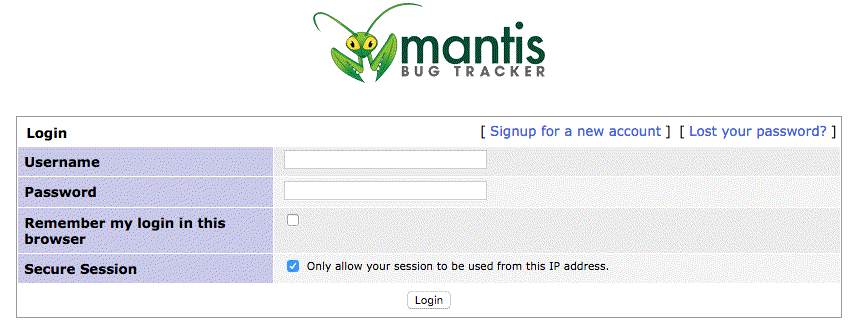
2. Click on “Report Issue” in the main menu bar.

3. Select the Project you would like to report on (if it’s not already selected).

4. Select the Category to which the issue is related to. This will help everyone on the project to be inlined with the issue quickly.

5. Select the Reproducibility. While it is best to report defects that can be reliably reproduced, you can select other available options such as “sometimes” or “random” if you are not able to reproduce the problem reliably.
6. Select the severity of the issue.
7. Select the priority of the defect.

8. Provide information about the test environment profile.

9. You may leave “Assign To” blank or otherwise agreed with your development team.

10. Provide a single sentence summary of the bug. Good practice would be to include the section of which the bug has taken place and a brief description. E.g. "[Homepage] Menu drop down list does not function expectedly."

11. Provide the description of the bug.
The description should contain the following key components:
A clear, concise description of the problem. Writing in the active voice helps convey the message clearly. E.g. “When the user clicks on the menu button on the homepage, the sub menu options do not drop down or show.”
The actual result of the defect. E.g. “The sub menu options do not show.”
The expected result. E.g. “The sub menu should show when the menu button is clicked.”
Reference to any additional documents that validates the presence of the defect. E.g. “Please refer to xx_yy__zz.jpg for additional details.”

12. The “Steps to Reproduce” section should entail detailed steps that the developer or tester can follow to reproduce the problem.
For e.g.
Navigate to the website homepage.
Click on the menu button.
Observe that the sub menu options do not drop down.

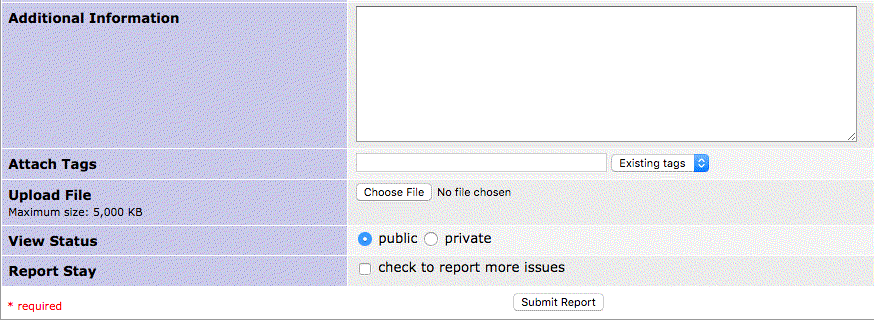
13. Provide any Additional Information that can be used to inform the developer of the circumstance that the defect has been found. For example, the device that was used, the version of the browser, the version of the operating system, etc.
14. Use “Upload File” to include any files that are pertinent to the issue raised.
15. Leaving the “View Status” as “Public” is fine to keep members of the project informed.
16. "Report Stay" may be checked if there is more than one bug to report.
17. Click “Submit Report” and you’re done.
Monitoring bugs
Log with your username and password. If you have forgotten your credentials, you can reset your password using your email address from the login page.
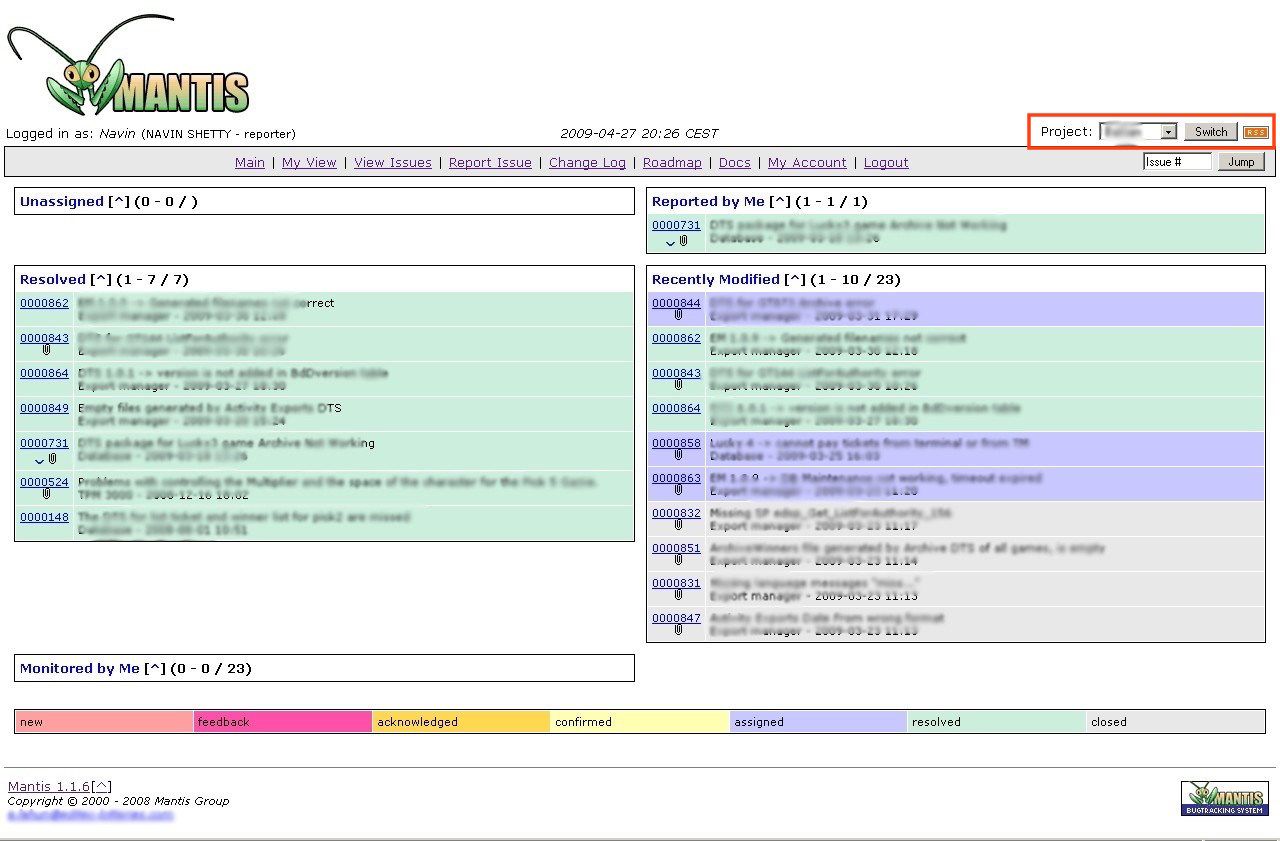
You can filter your issue results by changing the project reference in the top right corner of the mantisBT webpage. Issues are colour-coded for ease of reference.